Canva Magic Edit / Photo Editor alternative for old photo restore
Comparing Canva Magic Edit / Photo Editor design workflows with a heritage photo restore: free watermarked preview, then one-time PayPal if you keep the full-resolution file. Canva wins for layouts; haoshi for face-aware restore.
Canva Magic Edit / Photo Editor alternative for old photo restore
Canva is excellent for design layouts, social graphics, and Magic Edit-style touch-ups inside a design canvas. If your job is different — one or a few heritage scans that need face-aware restore, optional scratch cleanup, and colorize with a free watermarked preview → one-time PayPal unlock — a focused restore path can be a better fit than treating Canva as a full old-print lab.
Independent comparison. We are not affiliated with Canva. Upload your scan above and judge quality on your photo before paying. Honest split: Canva wins for design layouts; haoshi wins for heritage face-aware restore + pay-after-preview.
When Canva wins
- You need posters, invitations, social posts, or collage layouts around a photo.
- You already live in Canva and only need light Magic Edit / background cleanup on a modern image.
- Team templates, brand kits, and multi-page designs matter more than archival face likeness.
- You prefer Canva’s subscription / Pro stack for ongoing design work.
When a pay-after-preview web restore wins
- You already have a flatbed or phone scan and mainly need old-print restore — fade, soft faces, dust/scratches, optional B&W/sepia colorize.
- You want to see the result first, then pay once via PayPal ($3.9 / $9 for five) — no design subscription required for a one-off print.
- Heritage likeness matters more than Magic Studio layout tools; files delete after 7 days and are not used for training.
Pipeline difference in one line
Our stack prioritizes face restore (GFPGAN), optional scratch cleanup, optional colorize, and ~2× upscale — the same path as AI photo restoration online. Canva optimizes for design + Magic Edit inside a canvas; we optimize for try-before-pay repair of family prints when you are not building a layout.
Try it
Use the upload form at the top. Also compare vs Photoshop, vs Fotor, vs GIMP, and vs Remini. Questions: [email protected].
Examples
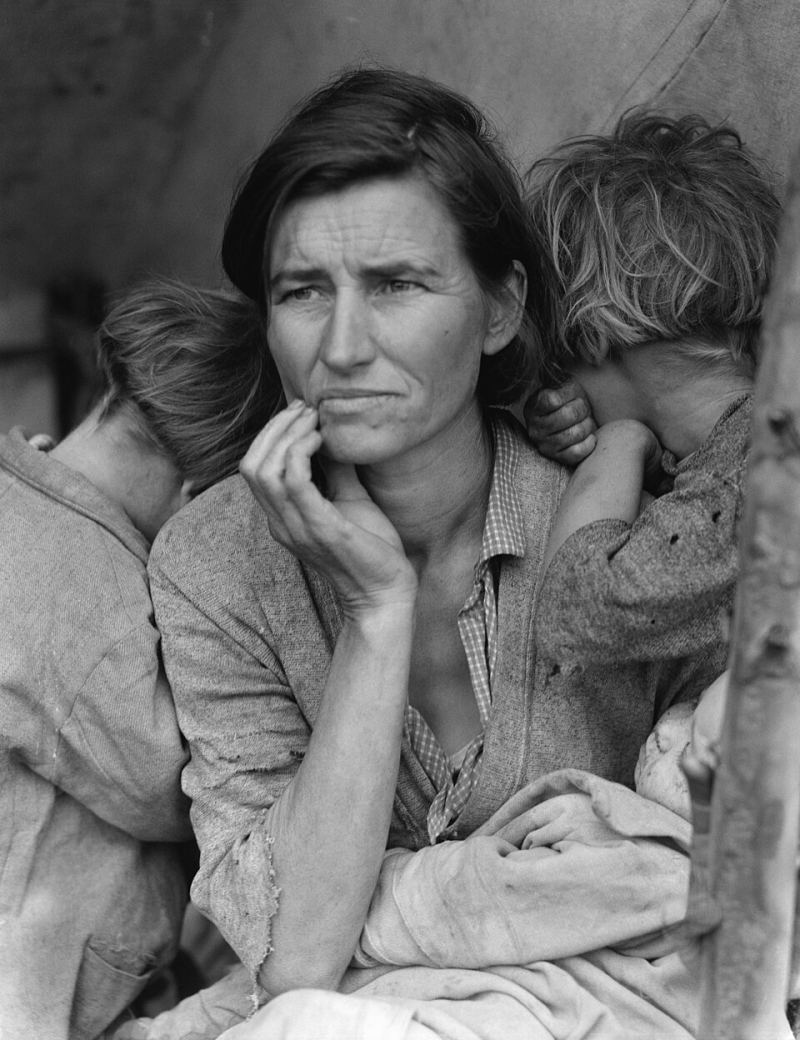

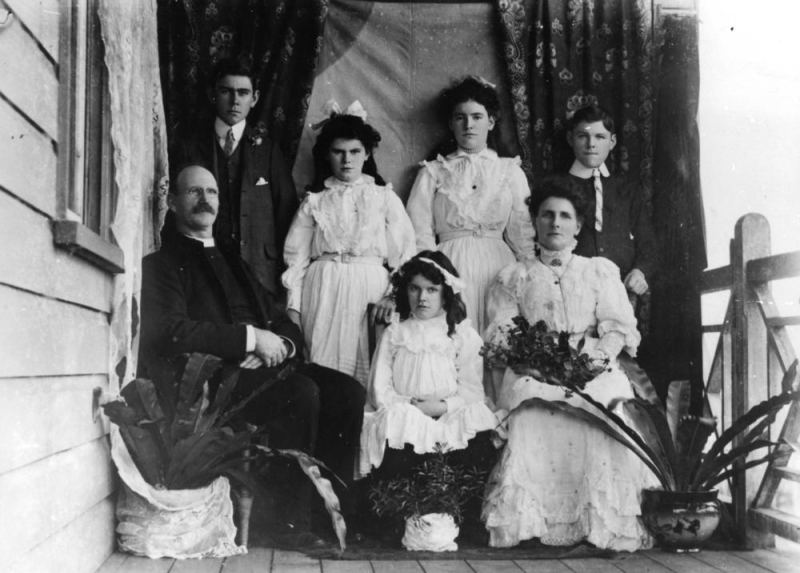
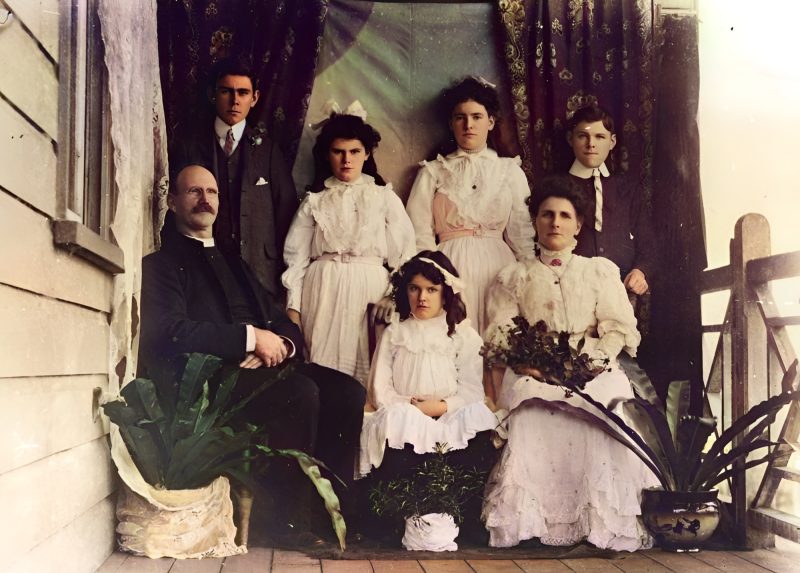
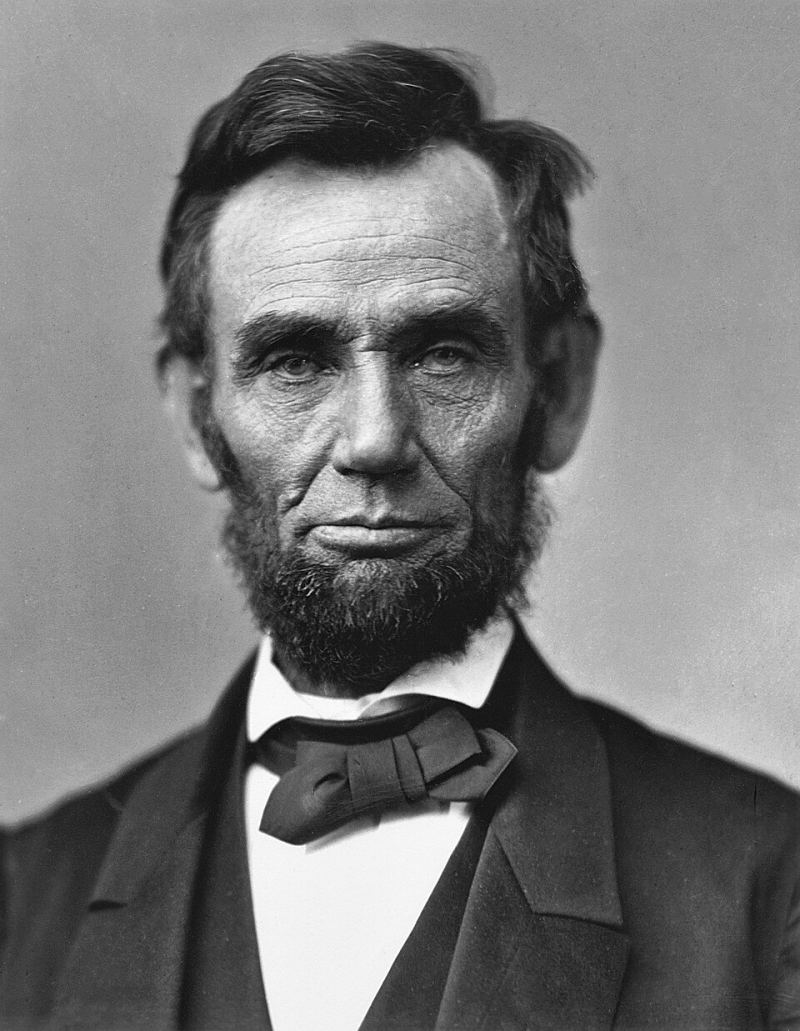
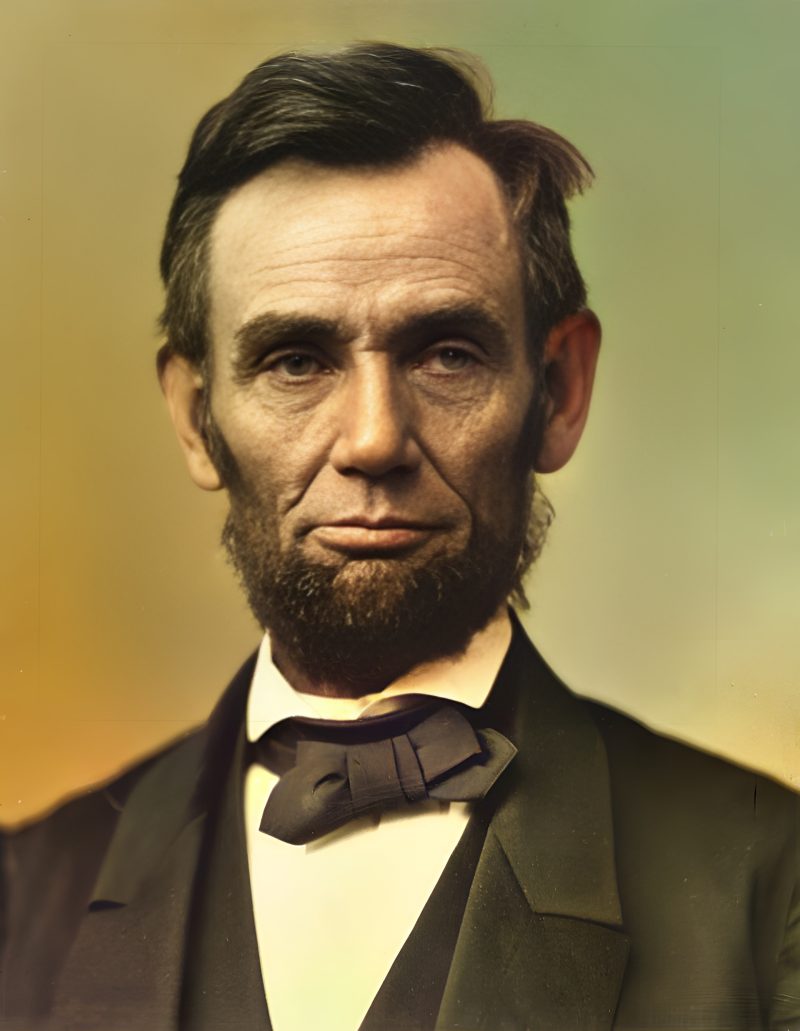
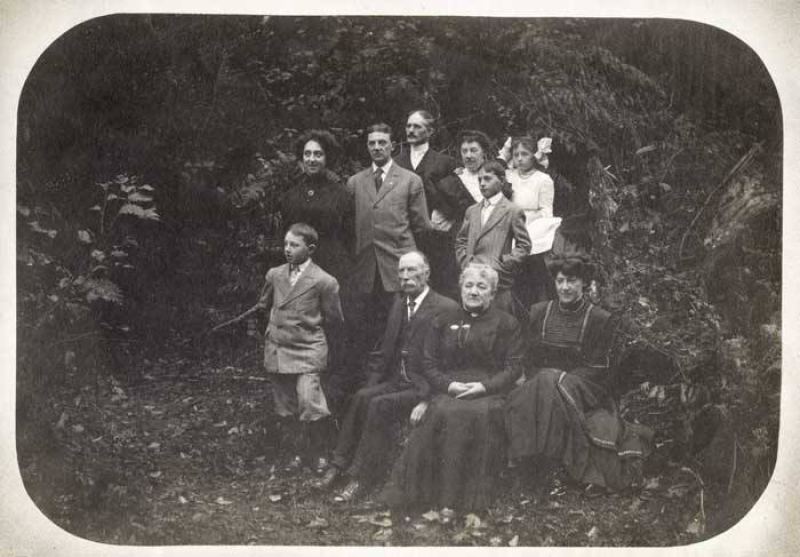
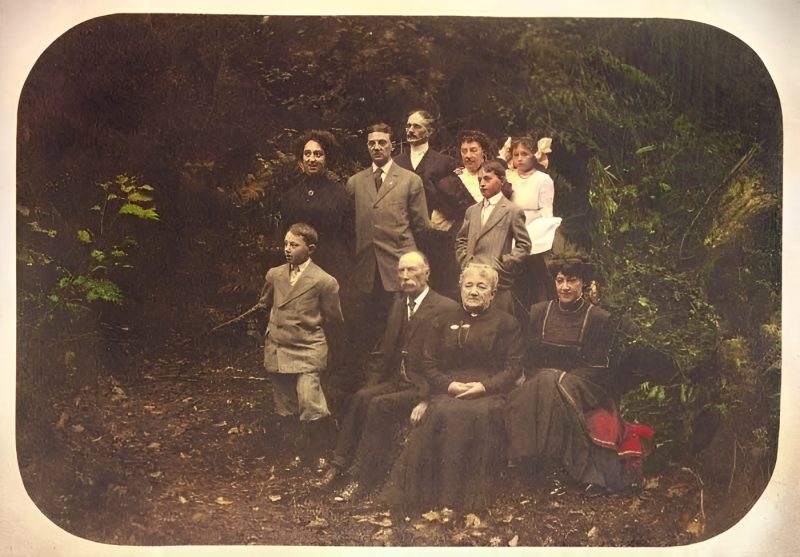
Pricing
Full resolution (2× upscaled), no watermark
Best value · $1.80 per photo
One-time payment via PayPal (card accepted, no account needed in most countries). No subscription. Not happy? Email us within 7 days for a refund.
FAQ
Is this affiliated with Canva?
No. Independent tool. We compare workflows so you can pick Canva design/Magic Edit vs a one-off heritage restore checkout.
When should I stay on Canva?
When you need layouts, social graphics, templates, or light Magic Edit on modern images inside a design canvas.
When does pay-after-preview win?
When you mainly need old-print face-aware restore, scratch cleanup, and optional colorize — see the free watermarked preview before PayPal.
Subscription or credits?
No. One-time PayPal per order; files delete after a week.
How do I pay?
Only after the free watermarked preview. Pay the exact unique PayPal amount on the order page to unlock the download.
More answers on the full FAQ.
More guides
- Home – upload & free preview
- AI photo restoration online
- Restore old photos
- Restore torn photo · Polaroid · Childhood photo
- Military photo · Film slide · Colorize sepia
- Water-damaged · Yellowed · Blurry old photo
- Creased · Stained · Yearbook photo
- Vintage · Funeral / memorial · Colorize old family photo
- Colorize old wedding · Grandmother photo · Film negative
- Grandfather photo · Baby photo · Cracked photo
- Mother photo · Father photo · WWII photo
- Tintype photo · School photo · Pet photo
- Colorize black & white
- vs MyHeritage · vs VanceAI · vs Remini · vs Fotor · vs Photoshop · vs Topaz · vs Photomyne · vs PicWish · vs Cleanup.pictures · vs HitPaw · vs AVCLabs · vs GIMP · vs Canva