Colorize old portrait photos
Turn black-and-white or sepia portraits into natural color with AI. Soft skin tones, sharper faces, free watermarked preview before you pay with PayPal.
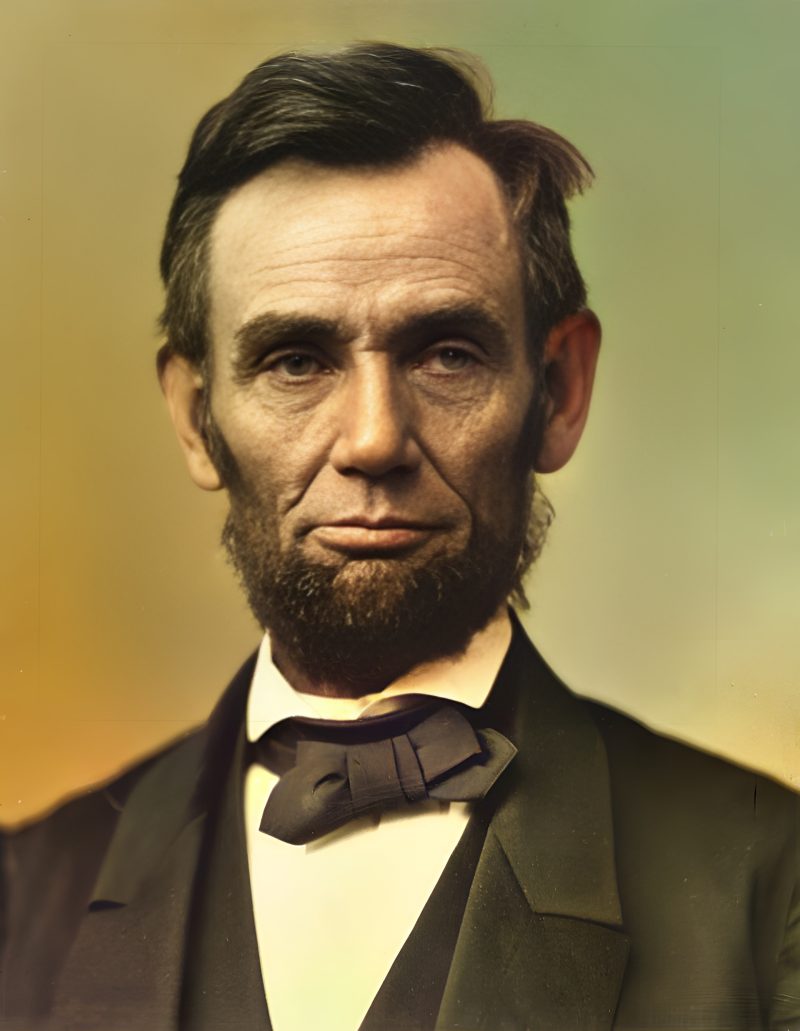
Colorize old portrait photos with natural-looking skin tones
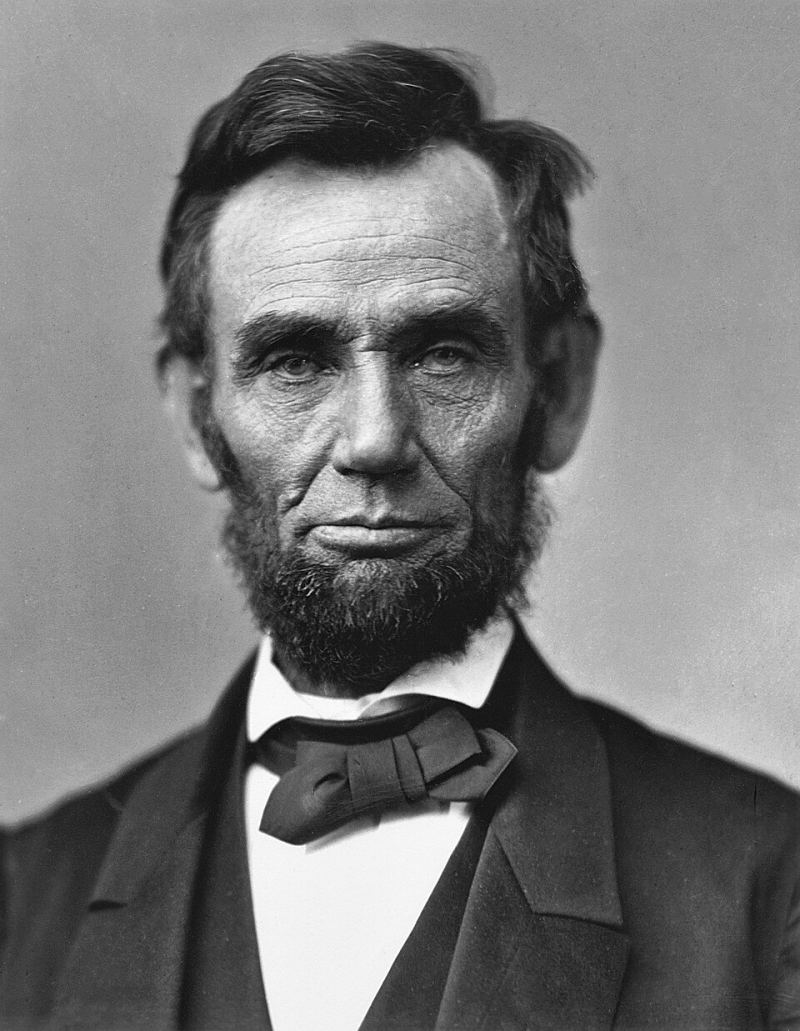
Old portrait photos — school pictures, wedding-day studio shots, military enlistment photos, passport-style headshots from a grandmother’s drawer — are usually about one thing: the face. When those portraits are black-and-white or sepia, many families want a gentle color version for a modern album, a memorial display, or a gift. Colorizing an old portrait is different from colorizing a landscape: skin, hair, eyes and clothing matter more than a dramatic sky, and an unnatural flush or orange cast is immediately obvious.
Upload a portrait above with Color set to Auto (or forced On). Our colorizer predicts plausible colors across the whole frame while preserving the original brightness detail, then our face restorer sharpens eyes, skin and hair and the upscaler enlarges the photo about 2×. You see a free watermarked preview first; full resolution costs $3.9 for one photo or $9 for up to five.
Why portraits need a careful colorizer
AI colorization is a prediction, not a historical document. For portraits that usually means:
- Skin tones are the first thing people judge. Good models keep them soft and even; bad ones push faces toward pink, orange or grey.
- Hair and eyes often look believable even when the exact original color is unknown.
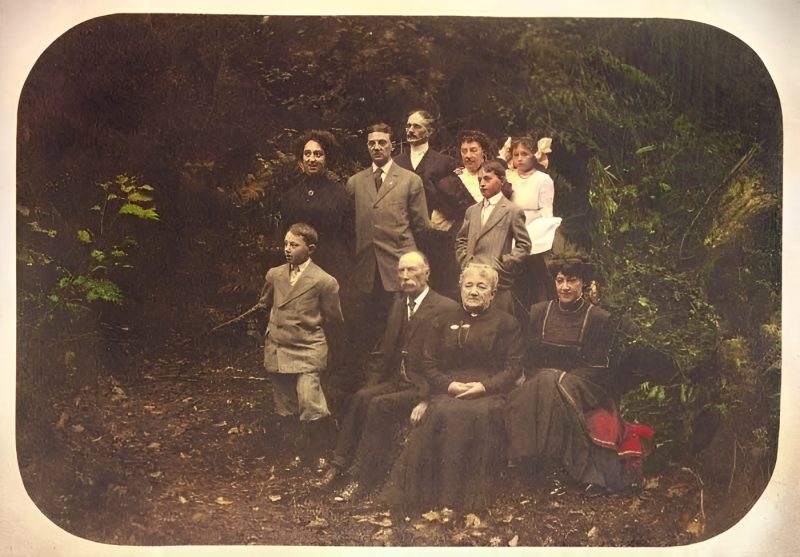
- Clothing and backgrounds are a best guess. A blue dress might have been green; a painted studio backdrop is especially uncertain.
- Sepia prints are treated like black-and-white: the brown cast is removed and full color is predicted on top of the luminance.
If you know a real color — “her wedding dress was ivory, not white,” “his uniform was olive” — put that in the PayPal note after you pay, or email [email protected], and we can nudge those areas by hand when it is practical.
Best inputs for portrait colorization
- A sharp face beats a large file of a blurry face. If you have both a soft group shot and a clearer close-up of the same person, colorize the clear one.
- Scan at 300–600 dpi or photograph the print flat in daylight without flash glare on the emulsion.
- Do not heavily edit in phone apps first. Skip beauty filters, auto-HDR and aggressive contrast; those fight the colorizer and the face model.
- Crop loosely around the person. Leave shoulders and a bit of background so the model can use scene context, but you do not need the whole album page.
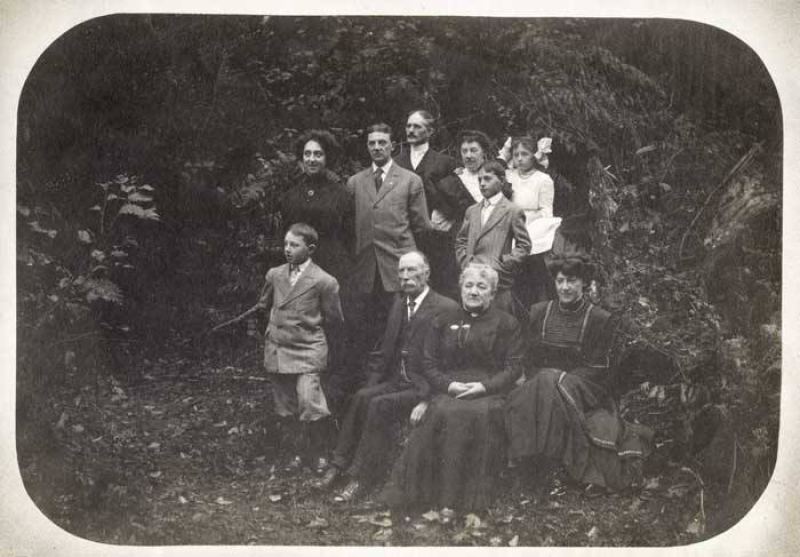
- One main face per upload works best. Group portraits still work, but the preview is easiest to judge when you care about one or two people.
What happens after you upload a portrait
The pipeline colorizes first (when the photo looks black-and-white, sepia, or you force color on), then restores faces with GFPGAN, optionally cleans fine scratches if you tick that box, and upscales. The free preview is watermarked so you can check skin tone, eye detail and overall mood before paying. Paid files are full resolution, without the watermark, and are removed from our server after 7 days.
When not to expect miracles
Portraits where the face is almost completely washed out, torn through both eyes, or smaller than a few dozen pixels across do not gain much from colorization alone. In those cases try general old-photo restoration first, or ask us whether a manual retouch is worth it. We will not invent a face that is not in the photograph.
Related pages
- Colorize black and white photos — broader scene colorization (landscapes, groups, everyday snapshots).
- Restore damaged family photos — album and heritage workflow.
- Enhance faded photos — when the portrait still has color but it has gone pale.
- Fix scratched photos — dust and hairlines on studio prints.
- Restore old photos online — end-to-end restoration overview.
Upload your portrait with the form at the top, or start from the homepage. For questions about a specific face or a known true color, email [email protected] before or after the free preview.
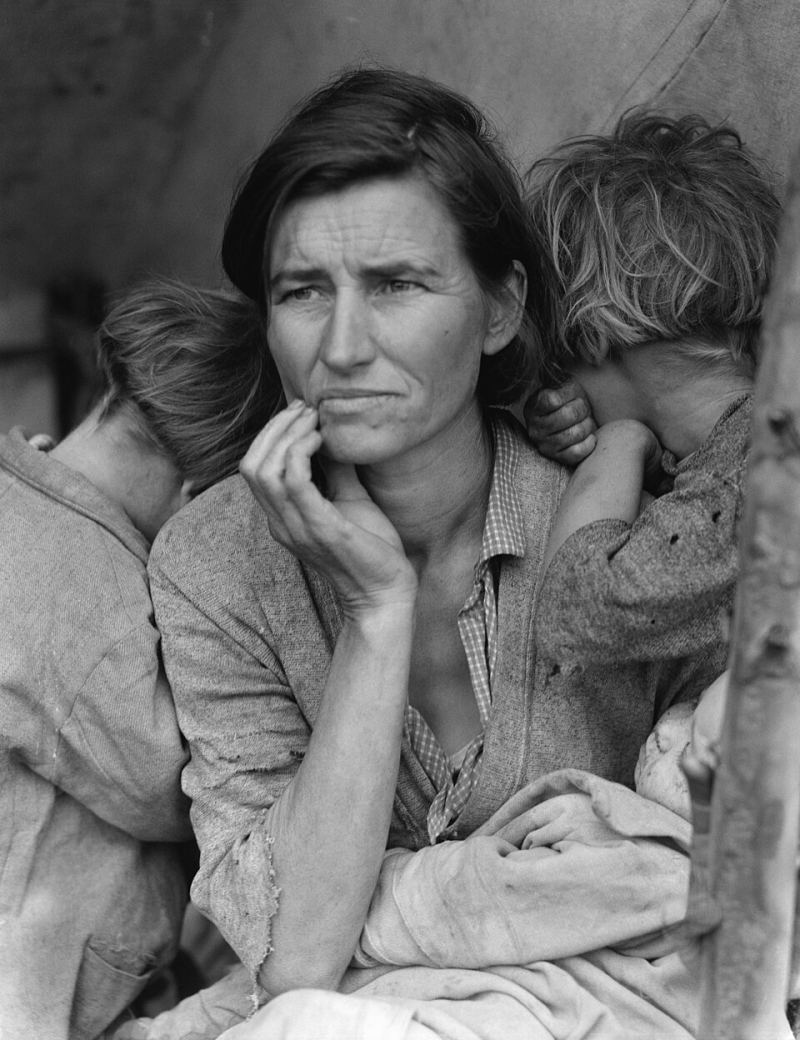
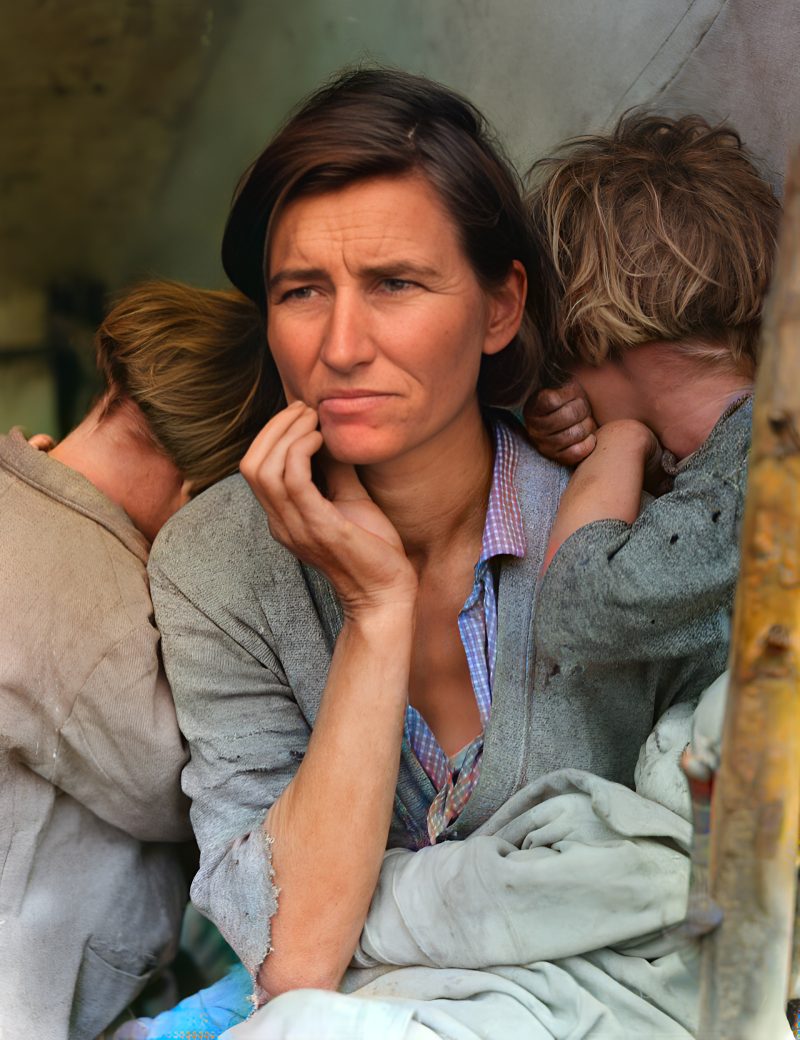
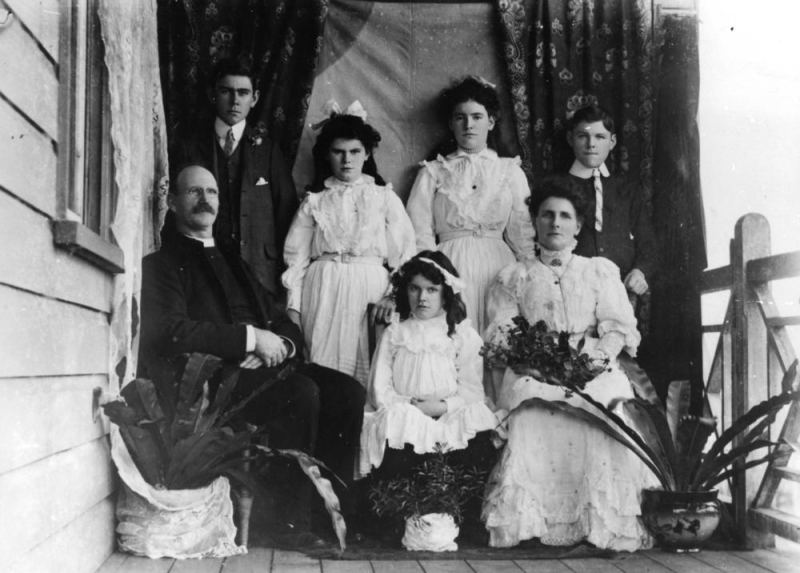
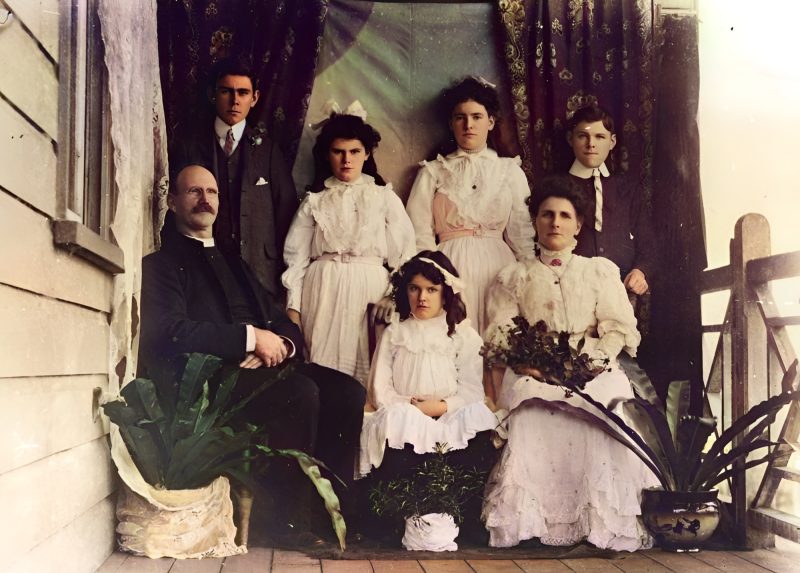
Examples
Pricing
Full resolution (2× upscaled), no watermark
Best value · $1.80 per photo
One-time payment via PayPal (card accepted, no account needed in most countries). No subscription. Not happy? Email us within 7 days for a refund.
FAQ
Will skin tones look natural?
Usually yes — that is what we optimize for. Clothing and painted backdrops remain best guesses.
Can I tell you the real dress color?
Yes — put known colors in the PayPal note or email us and we will nudge them when practical.
When do I pay?
Only after the free preview, via PayPal for the exact amount on the order page.
More answers on the full FAQ.
More guides
- Home – upload & free preview
- AI photo restoration online
- Restore old photos
- Restore torn photo · Polaroid · Childhood photo
- Military photo · Film slide · Colorize sepia
- Water-damaged · Yellowed · Blurry old photo
- Creased · Stained · Yearbook photo
- Vintage · Funeral / memorial · Colorize old family photo
- Colorize old wedding · Grandmother photo · Film negative
- Grandfather photo · Baby photo · Cracked photo
- Mother photo · Father photo · WWII photo
- Tintype photo · School photo · Pet photo
- Colorize black & white
- vs MyHeritage · vs VanceAI · vs Remini · vs Fotor · vs Photoshop · vs Topaz · vs Photomyne · vs PicWish · vs Cleanup.pictures · vs HitPaw · vs AVCLabs · vs GIMP · vs Canva