Enhance faded photos
Bring bleached, low-contrast or washed-out prints back. AI sharpens faces, recovers detail and upscales about 2×. Free preview first; PayPal only if you keep it.
Enhance faded photos and bring washed-out prints back
Faded photos are the quiet damage of time: color that has bleached toward pink, yellow or grey; blacks that turned muddy; highlights that flattened until faces look like paper cutouts. Unlike a dramatic tear, fading often leaves the whole picture intact — just hard to enjoy. Enhancing a faded photo means restoring usable contrast and local detail so eyes, clothing and backgrounds read clearly again, without inventing content that was never there.
Use the upload form above on any faded print or scan. Our pipeline sharpens faces, reduces grain, optionally removes fine scratches, can colorize if the print has gone fully monochrome, and upscales about 2×. You always get a free watermarked preview; you pay $3.9 (or $9 for five) only if you want the full-resolution file.
Common kinds of fade
- Color bleach from light and heat. Prints left near a window or in a warm attic lose cyan or magenta layers first. Faces go orange or pale; skies lose blue.
- Low-contrast black-and-white. Old silver prints or newspaper clippings where the midtones swallowed both shadows and highlights.
- Sepia shift. Everything drifted brown; detail is still there but modern viewers struggle to see it.
- “Muddy” scans. A dark scan of a dark print, or a phone photo taken under yellow indoor light, can look more faded than the original object.
AI enhancement helps most when structure is still visible under the fade. If an area is pure white paper or pure black glue stain with no texture left, no honest tool can recover it — we will say so rather than invent a face.
How to prepare a faded print for upload
- Scan or photograph in even daylight. Avoid strong side light that creates a gradient across the print; that gradient is easy to confuse with the fade itself.
- Do not crank phone “auto enhance” first. Built-in filters often clip highlights and crush shadows. Give us the flattest, largest capture you can.
- 300–600 dpi on a flatbed is ideal. For phone capture, fill the frame, hold parallel, tap to focus on a face, and turn off flash.
- Keep the full photo. Crop album borders if you want, but do not crop away faded edges that still hold part of a shoulder or hat.
- Upload originals, not screenshots of screenshots. Each re-encode throws away the faint tonal differences the models need.
What our enhance step actually does
There is no single “de-fade” button in the stack. Instead we combine face restoration (GFPGAN) to rebuild soft facial detail, optional scratch cleanup for dust that shows up worse on low-contrast scans, optional colorization when the image is effectively black-and-white, and a 2× upscale (Real-ESRGAN or SPAN) that recovers edge definition. Together those steps usually make a washed-out print readable again. The free preview lets you judge whether contrast and faces look right before you pay. Files stay available for 7 days after upload, then are deleted.
Faded vs scratched vs black-and-white
If the main problem is hairlines and dust, start with fix scratched photos and tick the scratch option. If the print is truly black-and-white or sepia and you want color, see colorize black and white photos or the portrait-focused colorize old portrait photos. If you are working through a whole family album with mixed damage, restore damaged family photos walks through the heritage workflow. The general guide is always restore old photos online.
Honest limits
We do not claim museum-grade chemical restoration, and we do not invent missing people or text. Extreme overexposure, heavy water bleaching that removed the emulsion, or a thumbnail only a few dozen pixels wide will not become a sharp poster. The free preview exists so you can see the real result on your photo before spending anything.
Upload a faded print with the form at the top of this page, or begin from the homepage. Questions about a specific album or a batch of scans: [email protected].
Examples
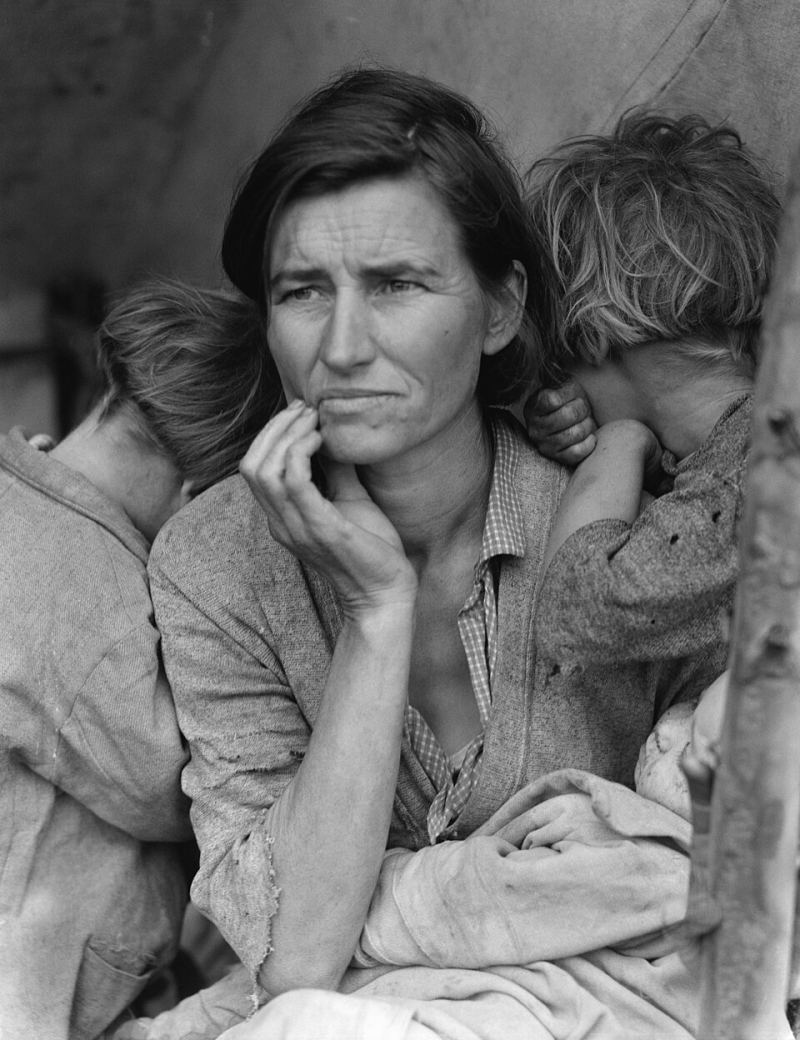
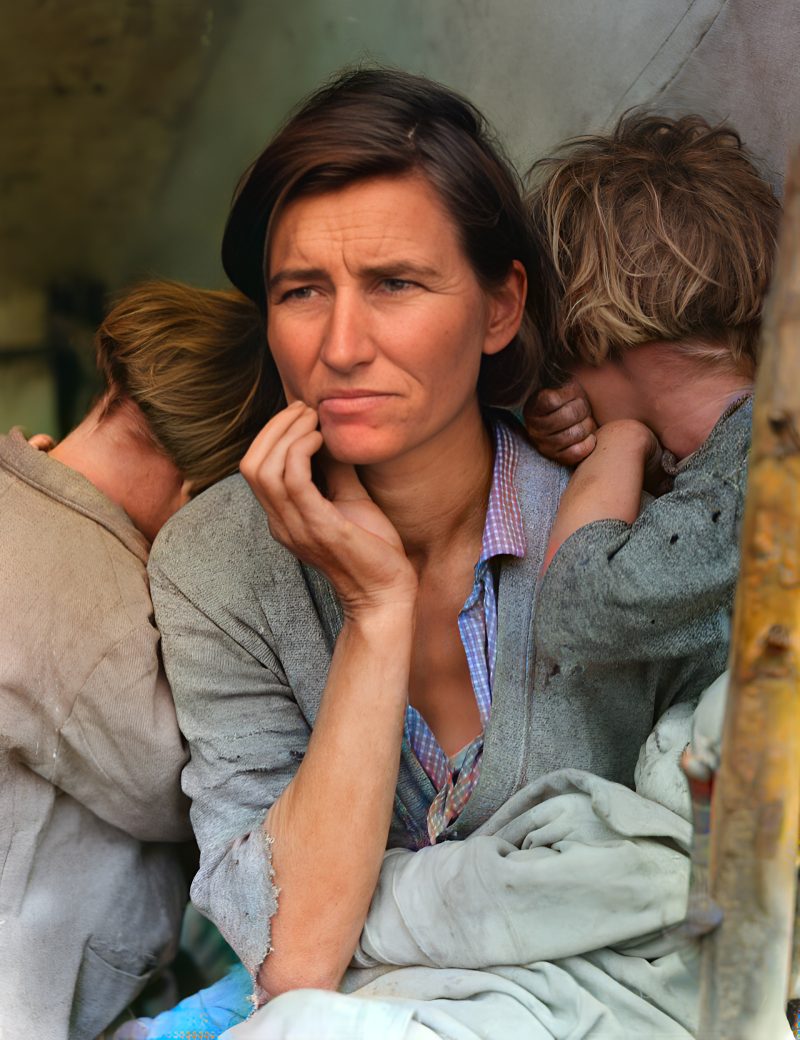
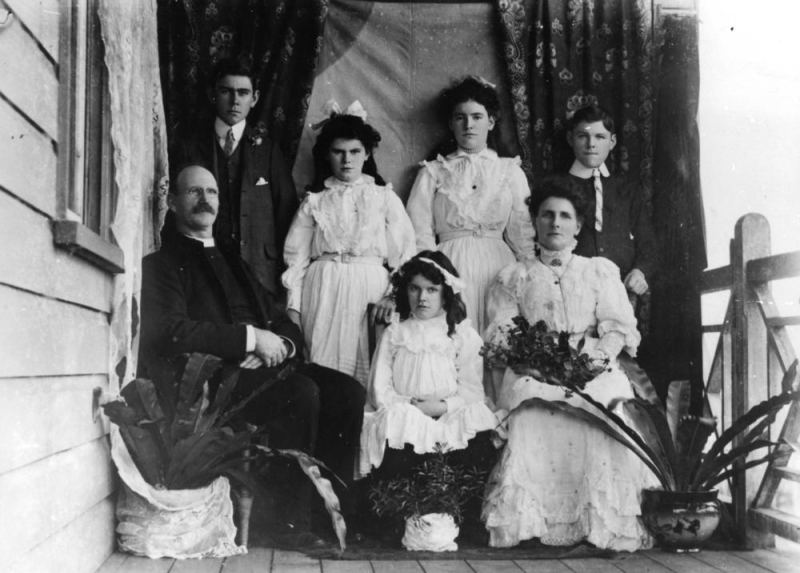
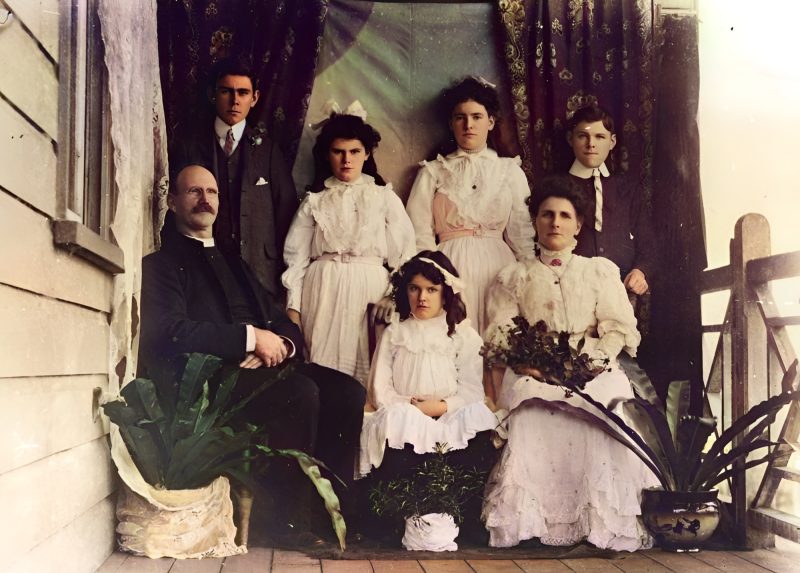
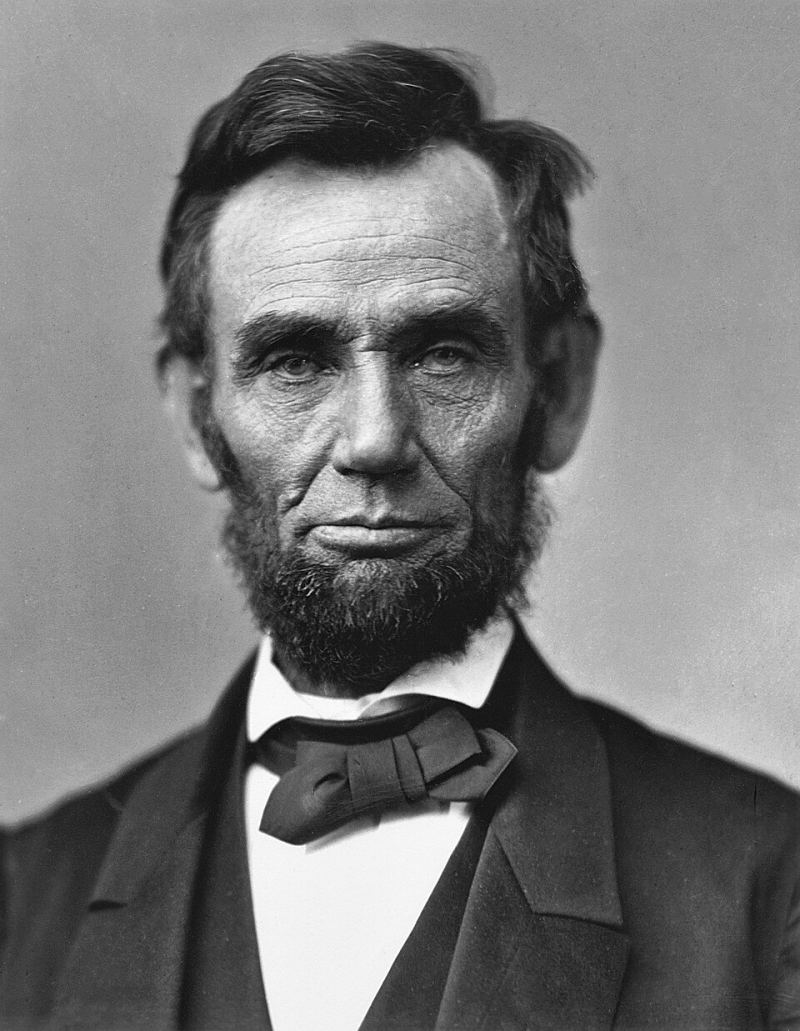
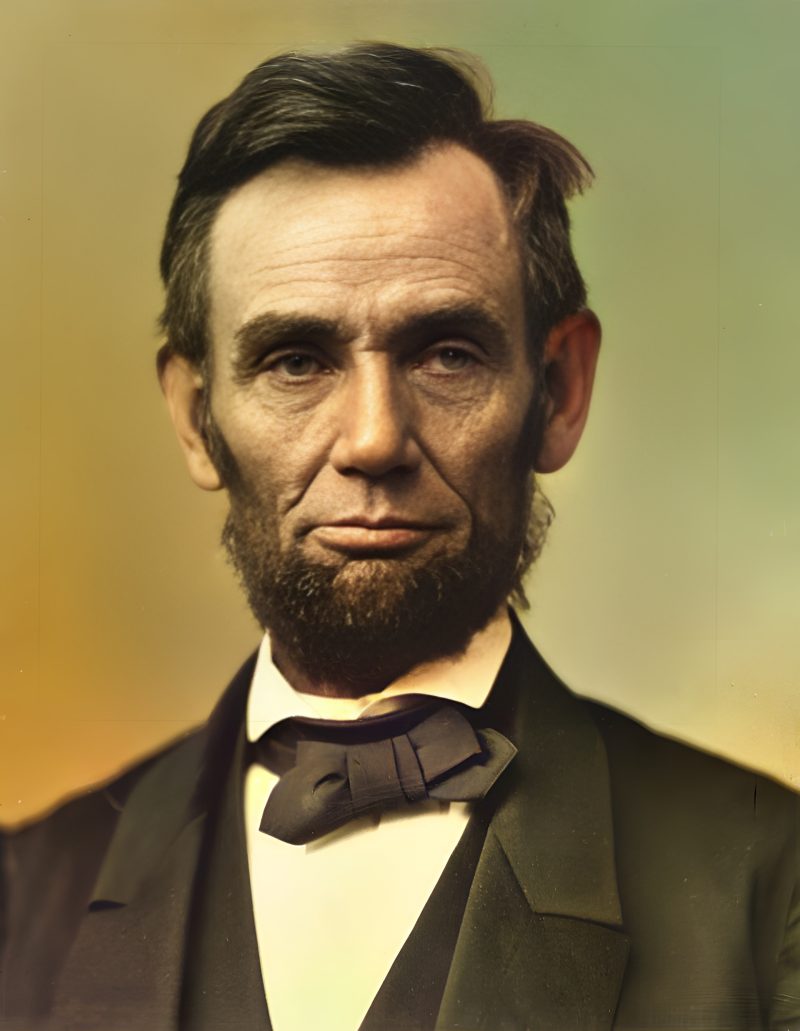
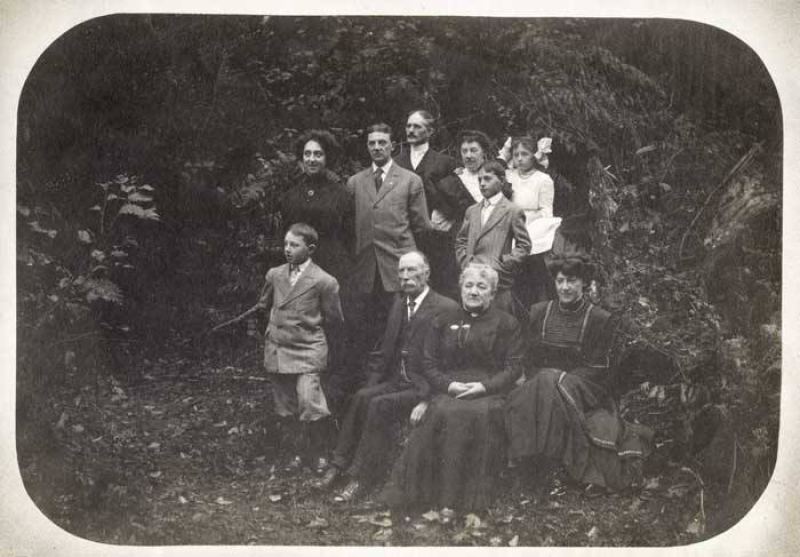
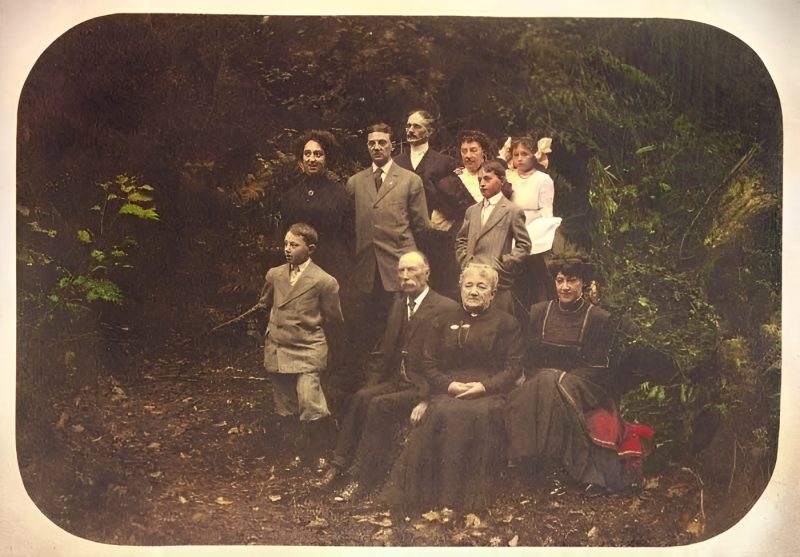
Pricing
Full resolution (2× upscaled), no watermark
Best value · $1.80 per photo
One-time payment via PayPal (card accepted, no account needed in most countries). No subscription. Not happy? Email us within 7 days for a refund.
FAQ
Is enhance the same as colorize?
No. Enhance targets contrast and detail on prints that still have (weak) color. Use colorize for true black-and-white or sepia.
Should I auto-enhance on my phone first?
No — skip phone filters. Upload the flattest, largest capture you have.
PayPal timing?
Pay after you like the free watermarked preview. Exact unique amount is shown on the order page.
More answers on the full FAQ.
More guides
- Home – upload & free preview
- AI photo restoration online
- Restore old photos
- Restore torn photo · Polaroid · Childhood photo
- Military photo · Film slide · Colorize sepia
- Water-damaged · Yellowed · Blurry old photo
- Creased · Stained · Yearbook photo
- Vintage · Funeral / memorial · Colorize old family photo
- Colorize old wedding · Grandmother photo · Film negative
- Grandfather photo · Baby photo · Cracked photo
- Mother photo · Father photo · WWII photo
- Tintype photo · School photo · Pet photo
- Colorize black & white
- vs MyHeritage · vs VanceAI · vs Remini · vs Fotor · vs Photoshop · vs Topaz · vs Photomyne · vs PicWish · vs Cleanup.pictures · vs HitPaw · vs AVCLabs · vs GIMP · vs Canva